Have any question?
Call (402) 514-3200

Call (402) 514-3200

QR codes are a popular way to direct individuals to specific web pages, like your business’ website. You can make them with relative ease, so there’s no excuse not to use them. Today, we’ll go over how you can make them in Microsoft Excel, a tool your business already probably uses to some extent.
Your first step is to build a table in Excel. Use the Insert menu to find the option for Table. Make one with two columns, then rename Column1 as Text and Column2 as QR Code.
Your end result should look like this:

Under the Text column, place your links; these are the destinations for your QR codes.

Once you’re ready, select the top empty space in the QR Code column. You’ll then paste the following into the formula tab:
=IMAGE("https://api.qrserver.com/v1/create-qr-code/?size=150x150&data="&[@Text]&"")

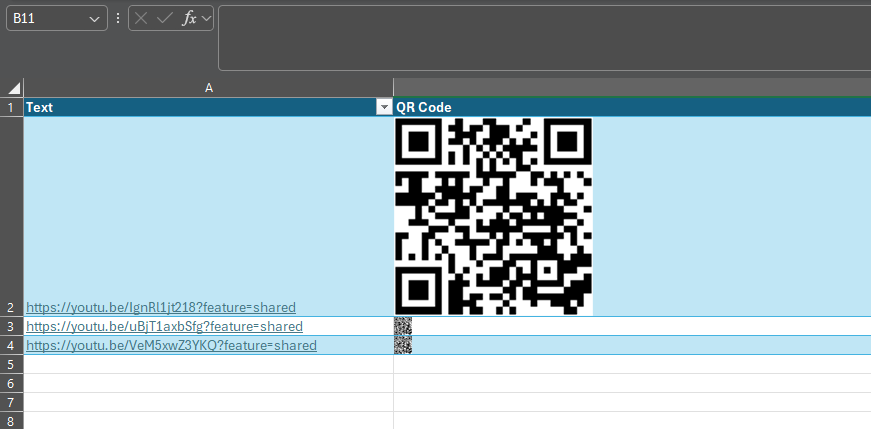
In the column, you should see QR codes for each of the links in the appropriate cell. We’ve edited our screenshot to show you a bit more clearly what’s going on, but all codes will direct to the corresponding link. You can copy them from this spreadsheet and use them anywhere you’d like.
If you found this blog helpful, consider giving us a call at (402) 514-3200 to see how we can help your business make better use of the tools it already has at its disposal.
About the author

Get the Knowledge You Need to Make IT Decisions
Technology is constantly evolving, and keeping up can feel overwhelming. Whether you want to understand cybersecurity threats, explore automation, or learn how regulations like PCI DSS impact your business, we’ve made it easy to access clear, straightforward insights on key IT topics.
Learn more about what Cambium Data can do for your business.
Cambium Data
8719 S 135th St. Suite 300 Omaha NE 68138
Omaha, Nebraska 68138
Comments